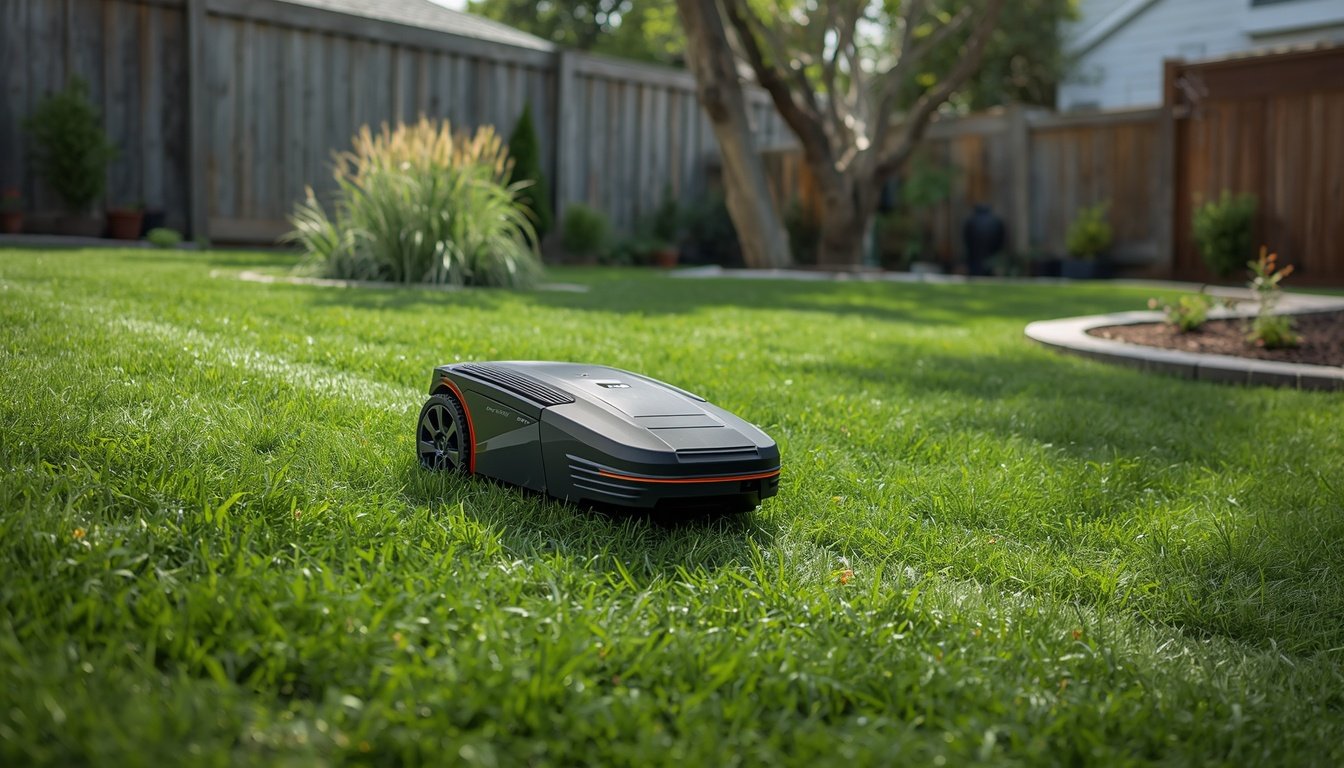
Wire-free robot lawn mowers map your lawn using built-in GPS or sensor technology, eliminating the need for perimeter wires. This process usually involves driving the mower around the edges of your yard so it can create a digital boundary and plan mowing routes. Understanding the mapping process is key before use, as it ensures your robot mower can accurately cover the lawn while avoiding obstacles and no-go zones. If you’re not sure how to approach this, it’s helpful to read guides about how to install a wire-free robot mower early in your setup phase, since mapping and basic installation are closely linked. The entire mapping workflow is straightforward, but paying attention to detail will help you get optimal results and fewer troubleshooting issues later.
Preparing Your Lawn for the Mapping Process
Before mapping, your lawn must be adequately prepared so the robot can easily navigate and “see” the yard boundaries. Start by removing large debris, toys, or any loose branches that might interfere with the mower’s path. This not only protects the robot’s sensors but also ensures there are no confusing obstacles during the crucial mapping process.
Next, clearly define the boundaries of your mowing area. If you have flower beds, ponds, or other no-go zones, mark these spots temporarily with visible objects. Some users use garden stakes or colored flags to highlight tricky edges or sections not meant for mowing. The cleaner your boundary, the more accurately the robot can map the lawn.
If you have areas with very tall grass or thick weeds, mow these down beforehand. Tall or dense patches can disrupt or confuse mapping sensors, leading to an incomplete or faulty map. It’s also a good idea to ensure grass is dry and the ground isn’t muddy to avoid slipping or messy wheels.
Finally, double-check that pets and children are indoors during mapping. Unpredictable movement can impact the robot’s session and may result in a map that misses key sections. Allocate at least 30–60 minutes for a medium-sized lawn, as mapping can’t be rushed for best results.
Getting Started with the Mower’s Mapping Feature
Wire-free robot mowers use intuitive apps or onboard controls to guide users through the initial mapping. Most models prompt you during the first setup to start boundary mapping. The process usually begins by instructing the robot to trace the perimeter of your yard, either through remote control or by following you if it has a “follow me” feature.
After powering on the mower and connecting it to its app or control panel, select the option to begin mapping. You may need to manually drive or walk the mower along the outer edges of the space, ensuring it passes around all corners and into any nooks or turns. Be mindful of tight spots—move slowly for maximum accuracy.
If your mower uses GPS, find a clear day to reduce satellite interference. In tree-heavy yards, go extra slow near shaded areas or dense shrubbery to help the sensors get a clearer reading. Carefully trace around no-go zones, such as pools or vegetable gardens, so the robot marks these off-limits in its digital map.
The mower will store these mapped coordinates and generate a virtual boundary. Most units confirm on their display or in their app that mapping is complete. Review the area visually before confirming—make sure nothing important was missed, and repeat the process if necessary for tricky yards.
Key Steps to Mapping Your Lawn Successfully
- Ensure the mower’s batteries are fully charged before mapping.
- Begin mapping from the designated starting point recommended in your user manual.
- Stay close to the robot and guide it gently along all boundaries.
Battery life is essential because a mapping session interrupted by low power could cause the robot to lose progress and might mean starting from scratch. Always charge the battery ahead of mapping to avoid mid-session pauses. Starting from the manufacturer’s suggested point—often near the charging dock—helps the mower orient itself reliably and provides a reference location for future mowing cycles.
As you walk or drive the mower along, keep an even pace and avoid sudden stops. If your mower has an onboard camera or advanced sensors, ensure the lanes are clear and uncluttered to get the most accurate digital sketch of your landscaping. If you encounter tricky spots, such as tight corners or abrupt elevation changes, use steady movements to closely follow the contours. The more carefully you trace, the more dependable the mapped route will be. Don’t rush—even a slow mapping lap can save hours of troubleshooting and rescanning later on. Repeat the boundary pass if you suspect a section was missed.
Tips for Marking No-Go Zones and Protecting Special Features
- Use temporary markers such as cones or garden stakes to identify sensitive areas.
- Walk the mower carefully around obstacles you want to exclude from mowing.
- Double-check all no-go zones in the app before saving the map.
Marking no-go zones is perhaps the most critical part of mapping if you want to protect flower beds, children’s play areas, or garden features. Place bright cones, flags, or stakes at the perimeter of these areas, making sure they’re clearly visible during the mapping run. Most wire-free robot mowers will let you create exclusion zones by walking them around the boundary or selecting points in their companion apps.
As you guide the mower, steer it carefully around each no-go location. Move slow and steady, especially for small or irregularly shaped zones. Modern mowers store these areas digitally, so future mowing sessions automatically avoid them. Once mapping is finished, always double-check the zones using the app’s preview or map feature. Small mistakes can lead to the mower entering protected spaces. Redo mapping for sections that weren’t captured clearly to guarantee your special features remain untouched throughout the mowing season.
Validating and Adjusting the Mapped Area
After initial mapping, it’s crucial to test and validate the boundary. Most wire-free robot mower apps let you preview the digital map, showing the edges and excluded no-go zones. Walk the perimeter of the mapped area and visually compare it with your actual lawn. Look out for places where the outline strays too close to fences, walls, or plants you want protected.
If you notice areas that weren’t mapped correctly, use the mower’s app or controls to edit, add, or adjust virtual boundaries. Many modern models include “edit boundary” or “remap area” options for quick fixes. If there’s a significant error, consider redoing the mapping section for improved coverage.
Test the area by running a short mowing session or setting the mower to do a boundary scan. Watch how it maneuvers near tricky spots and make sure it turns, stops, and reverses as expected, never crossing into no-go zones. If problems appear, adjust the digital map and repeat the test. The extra time spent fine-tuning ensures the robot will perform perfectly during future scheduled mowing cycles, and you’ll avoid headache and accidental damage to your yard’s features.
What to Do If Mapping Fails or Needs Changes
Sometimes, the initial mapping run doesn’t go as planned. If your robot misses parts of the yard or enters forbidden spaces, don’t panic. Most systems let you re-map the entire area or make smaller adjustments. Begin by recharging the battery and inspecting for sensor obstructions – dirt, grass clippings, or moisture on sensor lenses can interfere with mapping accuracy.
If you need to start from scratch, go back through the removal of debris and clear marking of boundaries. This fresh start often corrects earlier issues and provides a cleaner digital outline. If you only need to tweak sections, use the mower’s mapping or zone-editing features found in its app, moving virtual borders a few inches at a time until coverage is perfect. For best results, consult your manufacturer’s troubleshooting guide for model-specific mapping tips and error solutions.
Should your lawn change shape (for example, new landscaping or removals), re-map at the next opportunity to keep mowing precise. Taking your time with mapping ensures your robot delivers clean, safe, and efficient operation all season long.