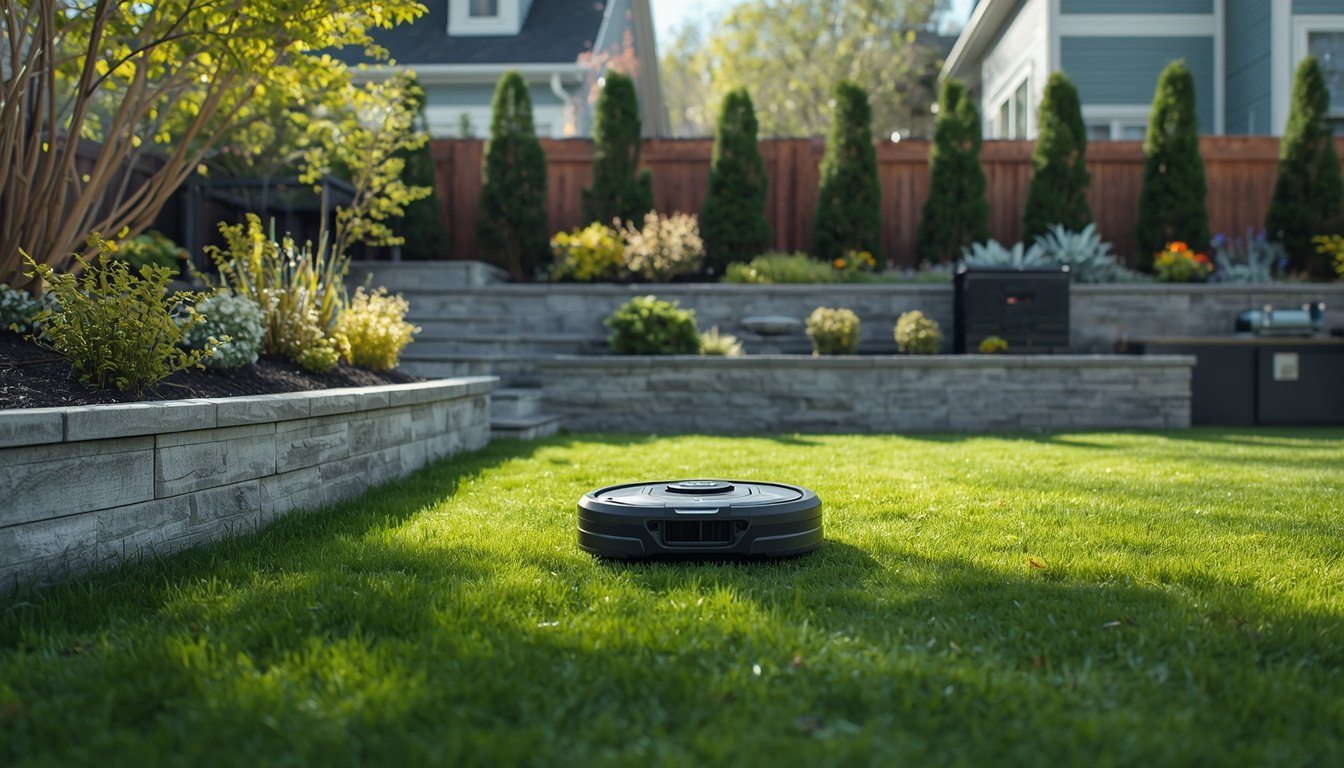
Most wire-free robot lawn mowers won’t connect to GPS or RTK for two main reasons: signal obstruction or incorrect setup. These mowers rely heavily on clear, uninterrupted signals from satellites and sometimes a local base station. When connections fail, it’s usually due to something physically blocking the signal, a setup error, or simple tech miscommunication. If you noticed your robot is constantly trying—but failing—to connect, it’s a good idea to review positioning, check for obstacles, and scan your startup steps. For users seeking a step-by-step guide, the wire-free robot mower troubleshooting guide can help address common issues before calling support.
Basics of Wire-Free Mower Connectivity
Wire-free robot mowers navigate using GPS, and some models use RTK for higher precision. Both systems depend on receiving stable wireless signals—directly from multiple satellites, or from a nearby RTK base station alongside GPS data. Consistent connectivity is essential for correct mapping and error-free mowing patterns.
If the mower can’t pick up these signals, it loses track of its location. This often causes it to stop, wander aimlessly, or report connection errors. The physical environment, such as buildings and trees, has a significant impact. Firmware problems or setup mistakes can also lead to persistent connection failures.
Understanding the key requirements for GPS and RTK connections is critical. Your mower must have a clear view of the sky, especially above its antenna. For RTK, both the robot and base station should be positioned thoughtfully in the yard. Awareness of these basics can save you frustration and guide your troubleshooting efforts before considering hardware issues or professional repairs.
Common Causes of Signal Loss
- Obstructions such as trees or buildings blocking the sky view
- Poor placement or interference of the RTK base station
- Incorrect software updates or system configurations
The most common culprit for GPS or RTK failure is something physically blocking the signal path. Your mower’s antenna needs mostly unobstructed sky to connect to satellites. Large trees, homes, fences, or even parked vehicles can interfere, especially during certain times of day.
Another frequent problem is where the RTK base station is installed. If it sits under an eave or near a wall, it can’t send corrections effectively. Base stations should always be placed in open, elevated areas of your property.
Software issues can also trip you up. A botched firmware update or wrongly entered map boundaries can cause the robot to misbehave. Double-check configuration settings after any major change or update. Understanding these pitfalls helps narrow down the source of the problem and avoid unnecessary service calls or product returns.
Environmental Factors Affecting Connectivity
Environment plays one of the biggest roles in GPS and RTK reliability. When it comes to signal reception, the fewer obstacles, the better. Tall trees, dense shrubbery, metal sheds, and even certain roofing materials can interfere with both the GPS receiver and, for RTK mowers, the communication link with the base station.
Weather can sometimes contribute too. Heavy rain, thick fog, or persistent cloud cover may temporarily reduce the strength or quality of satellite signals reaching your mower. While most modern systems can handle brief disruptions, ongoing problems with connectivity during wet or cloudy weather may indicate weak signal strength in your yard.
Neighboring wireless devices and power lines can also add to the interference, albeit rarely. It’s worth tracking when and where the mower loses signal. If the problems are always in the same spot or in certain weather, focus on that area for troubleshooting. A good understanding of potential environmental issues will help you determine whether a simple change—like trimming back a tree or moving your base station—might resolve the connection problem.
How Placement Impacts Signal Quality
- RTK base station requires a high, open location
- Mower antenna must see as much sky as possible
- Avoid placing equipment near metal structures or thick vegetation
The physical placement of your RTK base station and the path the mower takes are both key to strong connectivity. Base stations need wide, clear skies to see satellites and communicate with the mower; mounting them on a roof or a pole away from buildings usually works best. The mower itself should be mapped to avoid consistently shady or obstructed areas, taking full advantage of open space on your property.
Metal fences, cars, and even some patio furniture can reflect or block the required signals, creating dead spots in the yard. When setting up, walk the yard and look for open patches—those are the most reliable places for both the mower’s starting point and the RTK base station.
Good placement isn’t just about distance—it’s about reducing blockages between the antennas and the sky. Some users find that moving a base station or slightly adjusting the mower’s paths can solve persistent failures without further technical intervention. Don’t overlook simple adjustments before assuming there’s a hardware defect.
Troubleshooting Steps for Signal Problems
If your wire-free mower won’t connect, start with basics. First, check that your mower and RTK base station (if using one) are powered on and within range. Inspect for loose wires or any obvious physical damage on antennas or connectors.
Next, walk the mower around to different open locations in your yard and see if it connects in certain spots. Sometimes, dead zones are specific to dense trees or metal in the ground. Power-cycle both the mower and base station, then attempt to reconnect. Review your app or mower settings to ensure the latest software is installed and the correct map boundaries are set.
Work through any manufacturer-specific troubleshooting sequences. If needed, restore factory settings. Keep records of any changes or error messages. Documenting patterns (time, weather, location) will help with any future support call. Persistence with simple steps—resetting, relocating, and updating—can often restore solid connections and prevent unnecessary service visits.
When to Seek Professional Support
If you’ve tried relocating devices, updating software, and clearing all obstacles but still can’t establish a connection, it may be time to ask for help. Issues like internal antenna damage, faulty wiring, or persistent firmware bugs will likely require a technician or the attention of the manufacturer’s support team. Never attempt to open the device or hardware yourself unless instructed by official support resources.
Mowers that have recently experienced a power surge, lightning strike, or physical shock might have hardware problems even if everything appears normal externally. If your mower repeatedly loses the connection during use, or the base station cannot find satellites for extended periods, document all your tests and contact the manufacturer.
Before making the call, review your warranty and support documentation to see what’s covered. Taking a thorough approach with clear details speeds up the resolution. While most issues are caused by placement or simple blockages, technical support is sometimes your fastest route to a fully functional, wire-free mowing experience.