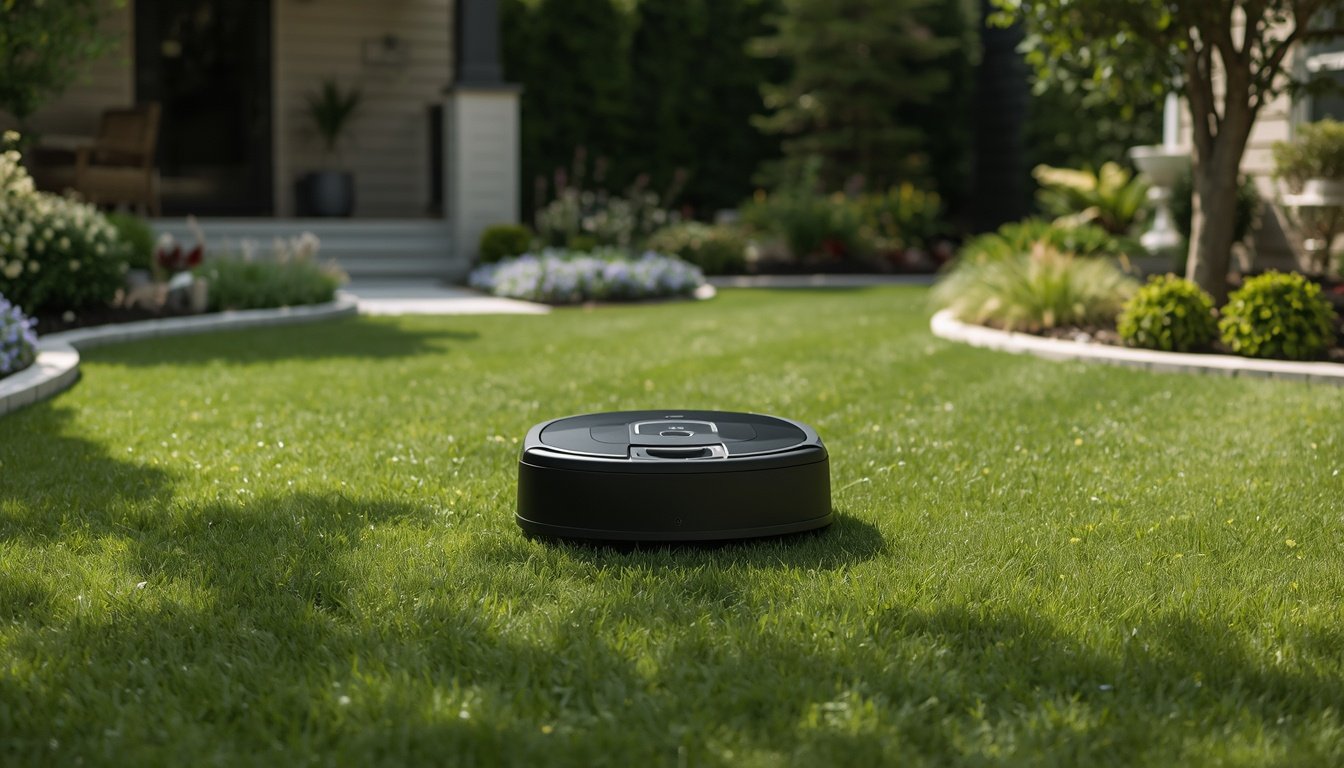
Programming a wire-free robot mower for the first time requires launching its setup menu, connecting to the mower via its app, and following the prompts to define your mowing area digitally. Most models use GPS or visual sensors to map the perimeter instead of physical wires. You’ll want to walk the mower or drive it using the app to outline your lawn, and then save this virtual boundary before starting your first mow. Even if you’re new to smart garden devices, you can get your mower programmed quickly by following the step-by-step guidance provided in its setup sequence.
Preparing for Your First Programming Session
Before beginning the programming process, ensure your wire-free robot mower is fully charged. Position its charging station in a recommended location, close to a power outlet and with good satellite visibility if your mower uses GPS. Clear your yard of temporary obstacles like toys, hoses, or lawn furniture, since these could confuse the mower’s sensors when you map the boundary. Download the manufacturer’s app on your smartphone or tablet, as this is usually required for initial setup.
Activate Bluetooth or Wi-Fi on your device so it can communicate with the mower. Most app-based systems give clear instructions, but having your mower’s manual on hand can help clarify any confusing steps. If your mower supports multiple zones or custom mowing schedules, be ready to decide on these during the setup. Taking a few minutes to review the app’s main screens before starting will make each programming step smoother.
Mapping and Setting Digital Boundaries
To begin mapping, launch the app and select the “create boundary” or equivalent function. Hold your device or operate the mower manually, guiding it around the entire perimeter of your lawn. Move at a steady pace and make sure to trace closely along fences, garden beds, or other permanent borders so the robot can detect edges precisely. Some mowers allow you to walk with them while others may have a “drive” function controlled through the app—choose the method that matches your model.
Once the entire area is mapped, review the digital boundary in the app’s preview window. Adjust segments as needed, adding “no-go zones” for features such as trampolines or flower beds. When you’re satisfied, save the mapping and apply the settings. This process ensures the mower only operates inside safe zones and avoids delicate landscaping. If you encounter issues or gaps in the map, most apps let you easily retry or edit the boundary without starting over.
- Charge the mower fully before starting the setup
- Remove movable obstacles from the mowing area
- Use the app to walk or drive the mower around your yard
- Review and adjust boundaries in the digital map
- Save settings and run a test mow
Following these steps leads to reliable first-time programming. Charging ensures the mower won’t stop during mapping. Clearing temporary items lets the robot sense yard features without obstruction. Using the app, you can create a precise digital outline—just be sure to double-check map accuracy. Saving the boundary and running a short test mow helps confirm the robot stays within its programmed area before starting a full mowing cycle. To learn more about installation procedures, visit this guide on how to install a wire-free robot mower.
Troubleshooting and Tips for Ongoing Success
If your mower misses areas or strays outside the boundary, revisit the mapping steps in the app. Sometimes GPS signal can drop if large trees cover the yard—relocating the charging station may help. If parts of your boundary are imprecise, zoom in on the digital map and adjust the outline. Many mowers also allow you to schedule multiple small zones for tricky yards; take advantage of this to increase accuracy.
Keep the app updated to guarantee new features and patches are installed. Clean the mower’s sensors and camera lenses as part of regular maintenance. If you encounter repeated issues, reset the boundary and start the mapping process again for a fresh calibration. Practice patience on your first run—most mowers learn and refine routes over time. For more detailed installation advice, check out related guides below.